- Blog
- ServicesHere's your portrait image and caption: **Image** (vertical, ready for Instagram/TikTok): a clean beige desktop tower with serial ports beside a vintage CRT monitor glowing softly in the workshop. --- **Caption:** Not everything needs to be cutting-edge to work perfectly. Some machines just need to keep doing their job — quietly, reliably, every single day. That's where we come in. For over **30 years**, Hills Computer Geeks has been building and repairing PCs across the Hills District. And yes, we still handle the classics: 🖥️ **Windows 95** 🖥️ **Windows XP** 🖥️ **Windows 7** Have equipment that still relies on a **serial port**? Cash registers, industrial gear, lab instruments, specialised machinery — we can build and repair the custom PCs that keep them running. We work with both **businesses** and **home users**, whether you need a legacy machine rebuilt from scratch or an old faithful brought back to life. Old tech isn't obsolete when it's in the right hands. Let's keep yours working. 📍 Baulkham Hills, NSW 📞 0407 400 405 #LegacyTech #CustomPCBuild #SerialPort #WindowsXP #HillsDistrict Would you like me to adjust the tone, shorten it, or try a different image style?

Setting Up Your New Device: A Step-by-Step Guide


Unboxing and Initial Setup
Congratulations on your new device! Whether it's a smartphone, tablet, or laptop, getting started can be both exciting and a bit daunting. This guide will walk you through the setup process so you can start using your device with ease.
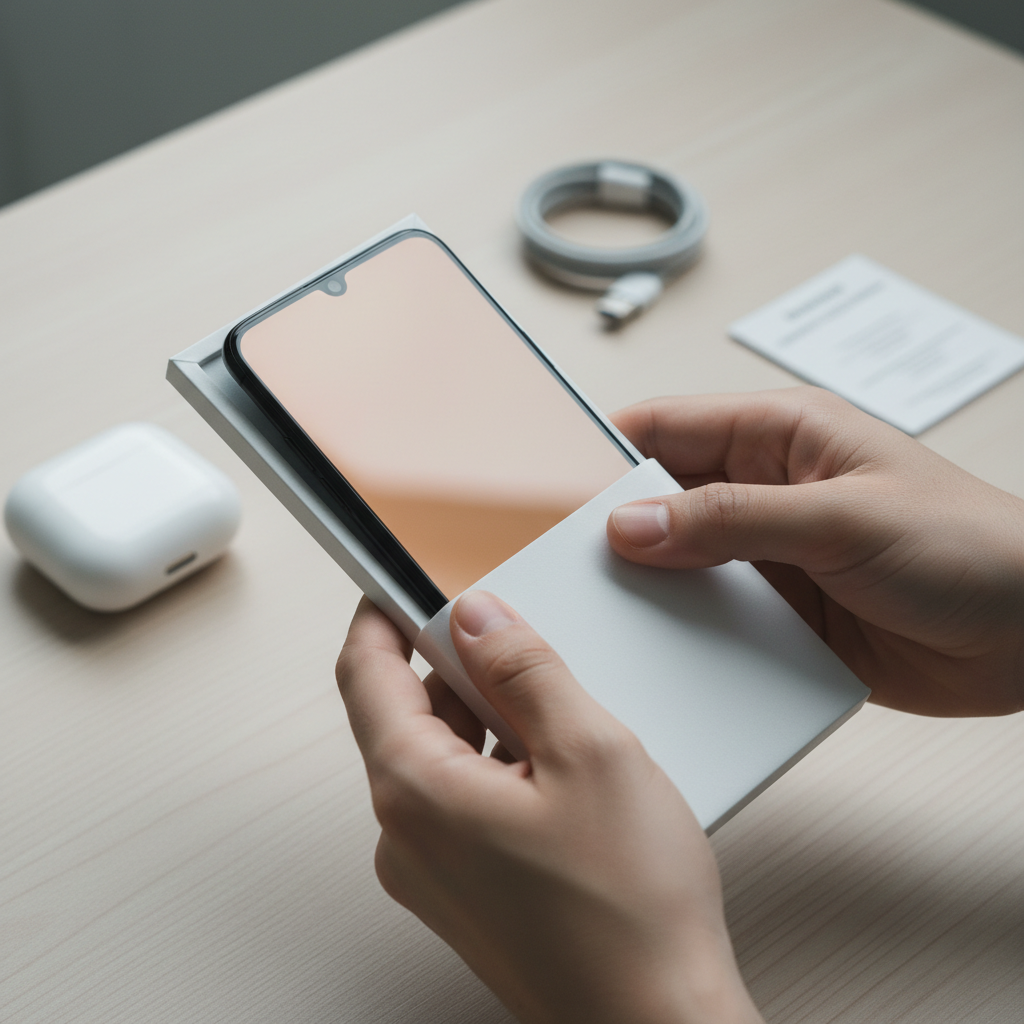
Begin by carefully unboxing your device. Ensure you have all the components, such as the charger, manuals, and any included accessories. It's important to check for any physical damage during shipping.
Charging Your Device
Before diving into the setup, it's a good idea to charge your device fully. Use the charger provided in the box for optimal performance. A full charge ensures that your device won't power off during the setup process.
While the device is charging, take a moment to read through the quick start guide. This booklet often contains valuable information specific to your device model.
Powering On and Basic Configuration
Once your device is fully charged, press the power button to turn it on. You will be greeted with a welcome screen and prompted to select your preferred language and region. Choose the settings that best suit your location and language preference.

Connecting to Wi-Fi is the next crucial step. Select your home network from the list of available networks and enter the correct password. A stable internet connection is essential for downloading updates and apps.
Setting Up Your Account
Most devices require you to sign in with an existing account or create a new one. For Apple devices, you'll need an Apple ID, while Android devices typically require a Google account. Follow the on-screen instructions to sign in or create an account.
Setting up an account allows you to access app stores, backup services, and other features that enhance your device's functionality.
Customizing Your Device
After setting up your account, you'll have the opportunity to personalize your device. You can choose a wallpaper, set up notifications, and organize apps to suit your preferences. Take some time to explore the settings menu to discover all the customization options available.

Consider setting up security features such as a password, PIN, or biometric authentication like fingerprint or facial recognition. These features help keep your data safe and secure.
Installing Essential Apps
Now that your device is configured, it's time to install essential apps. Head over to the app store and download the applications that will help you in your daily tasks, such as email clients, social media apps, and productivity tools.
Don't forget to explore new apps that could enhance your experience and make the most out of your new device.
Final Tips and Troubleshooting
As you start using your device, you might encounter some hiccups. Common issues can often be resolved by restarting the device or checking the manufacturer's support site for guidance. Remember, patience is key as you get accustomed to your new gadget.
Finally, keep your device's software up to date by regularly checking for updates. These updates often include security patches and new features that can improve performance.
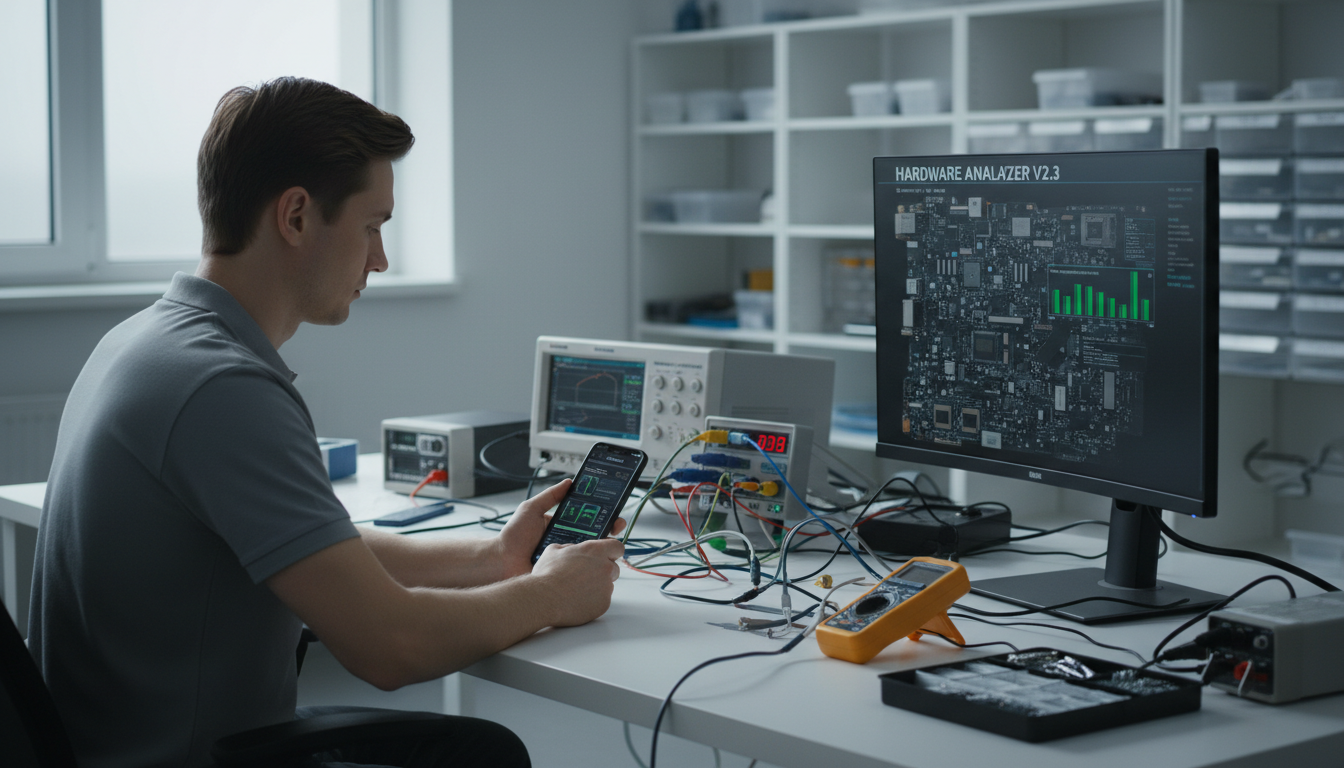
Enjoy your new device and all the possibilities it brings! With these steps, you're well on your way to becoming a savvy user, ready to explore the digital world.