
How to Set Up a Home Wi-Fi Network in the Hills District


Understanding Your Needs
Setting up a home Wi-Fi network in the Hills District involves understanding your specific needs. Consider the size of your home, the number of devices, and the types of online activities you and your family engage in. These factors will determine the type of router and internet plan that will best suit your needs.
For larger homes, a mesh Wi-Fi system might be ideal as it provides a seamless connection throughout your space. Conversely, for smaller homes or apartments, a standard router may suffice.
Choosing the Right Equipment
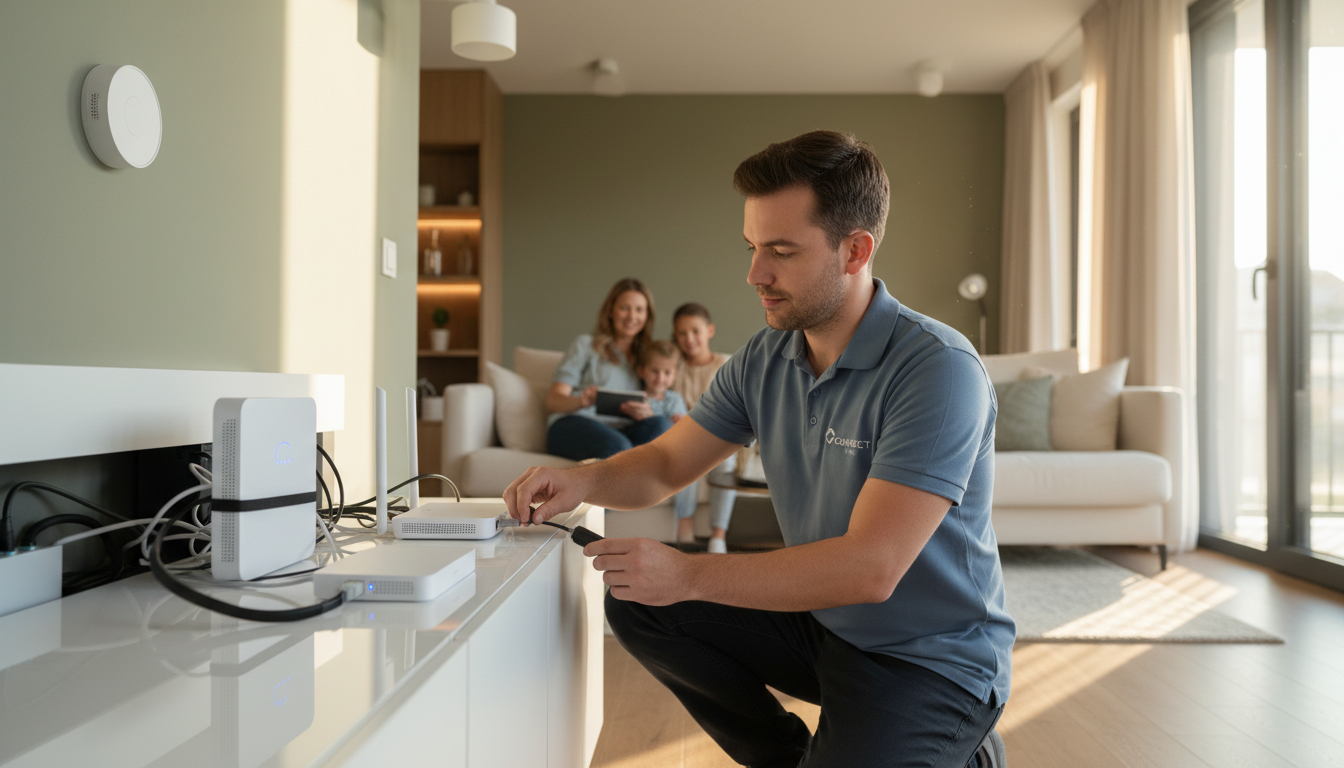
The first step in setting up your home Wi-Fi network is selecting the right equipment. This typically includes a modem and a router, or a combination of both in a single device. Ensure that your router is compatible with your Internet Service Provider (ISP) and supports the latest Wi-Fi standards like Wi-Fi 6 for optimal performance.
When purchasing a router, consider features like dual-band capability, which allows you to connect devices on both the 2.4 GHz and 5 GHz bands for better performance and less interference.
Modem vs. Router
A modem connects your home to the internet through your ISP, while a router distributes the internet connection to your devices wirelessly. If you rent equipment from your ISP, check if you can replace it with your own to save on rental fees and potentially improve performance.
Positioning Your Router
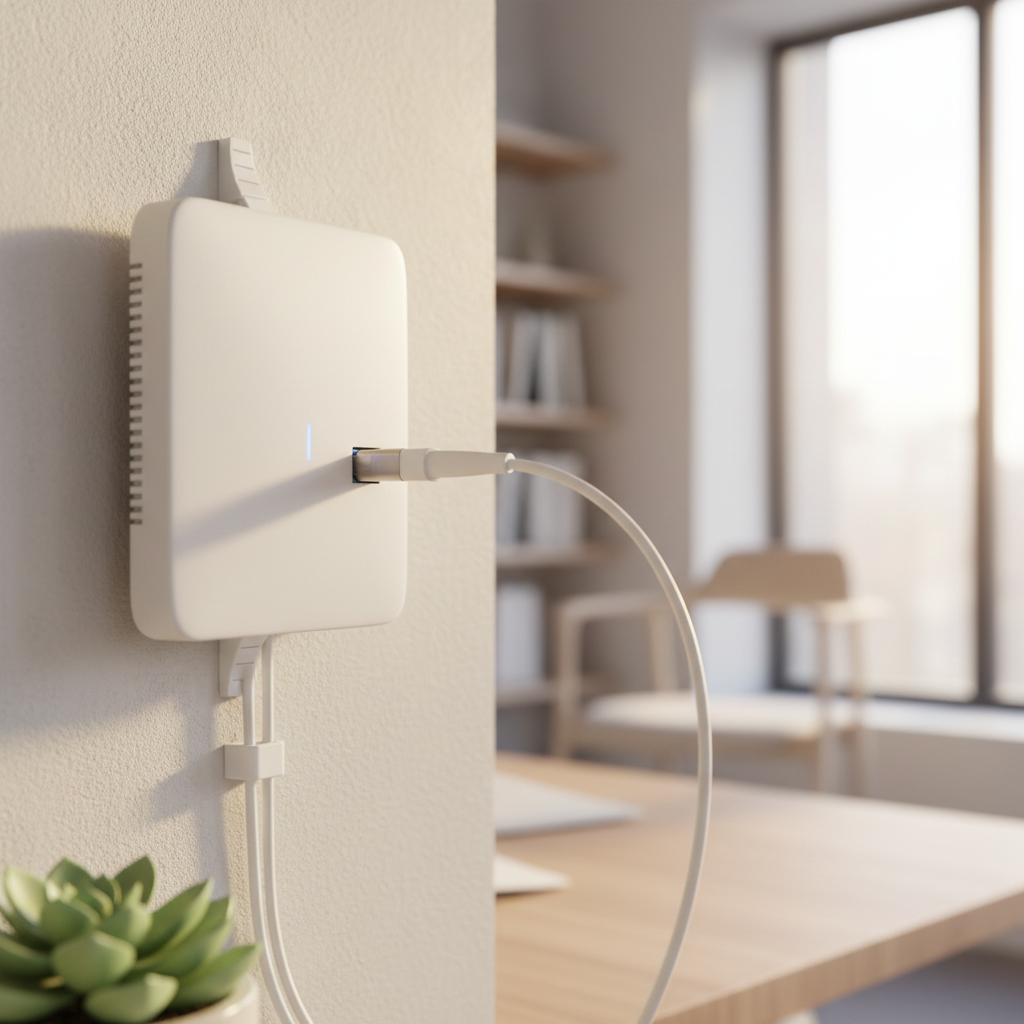
Properly positioning your router is crucial for optimal Wi-Fi coverage. Place your router in a central location in your home, away from walls and obstructions. Elevate the router on a shelf or table to maximize signal distribution.
Avoid placing the router near electronic devices or metal objects that could interfere with the signal. If your home has multiple floors, consider placing the router on the upper floor for better coverage.
Securing Your Network
Security is a critical aspect of setting up your home Wi-Fi network. Start by changing the default admin username and password for your router to prevent unauthorized access. Enable WPA3 encryption for the best security, or WPA2 if WPA3 is not available.

Regularly update your router’s firmware to protect against vulnerabilities. Many modern routers offer automatic updates, so enable this feature if available.
Configuring Network Settings
Access your router’s configuration page by entering its IP address into a web browser. From here, you can change your network name (SSID) and password, set parental controls, and prioritize bandwidth for specific devices or activities.
Consider creating a guest network for visitors to keep your primary network secure. This feature allows them to connect without accessing your main network resources.
Testing and Troubleshooting
Once your network is set up, test the connection speed and coverage throughout your home. Use speed test tools to ensure you're getting the bandwidth promised by your ISP. If you encounter dead zones, consider adding Wi-Fi extenders or upgrading to a mesh system.
If you experience connectivity issues, reboot your modem and router, check for firmware updates, and ensure cables are securely connected.
By following these steps, you can enjoy a reliable and secure home Wi-Fi network in the Hills District, ensuring seamless connectivity for all your devices.